MailView · Jira app
An email you can't read is a ticket you can't finish.
A customer forwards a thread, a colleague drags an Outlook message onto a ticket, a migration brings years of .msg files along. Jira shows them as code or raw text, so everyone downloads the file and opens it somewhere else. MailView shows the email right there on the work item. And when someone reports a suspicious email, it tells you in plain English whether it looks like phishing, and why.
Atlassian Marketplace listing in progress
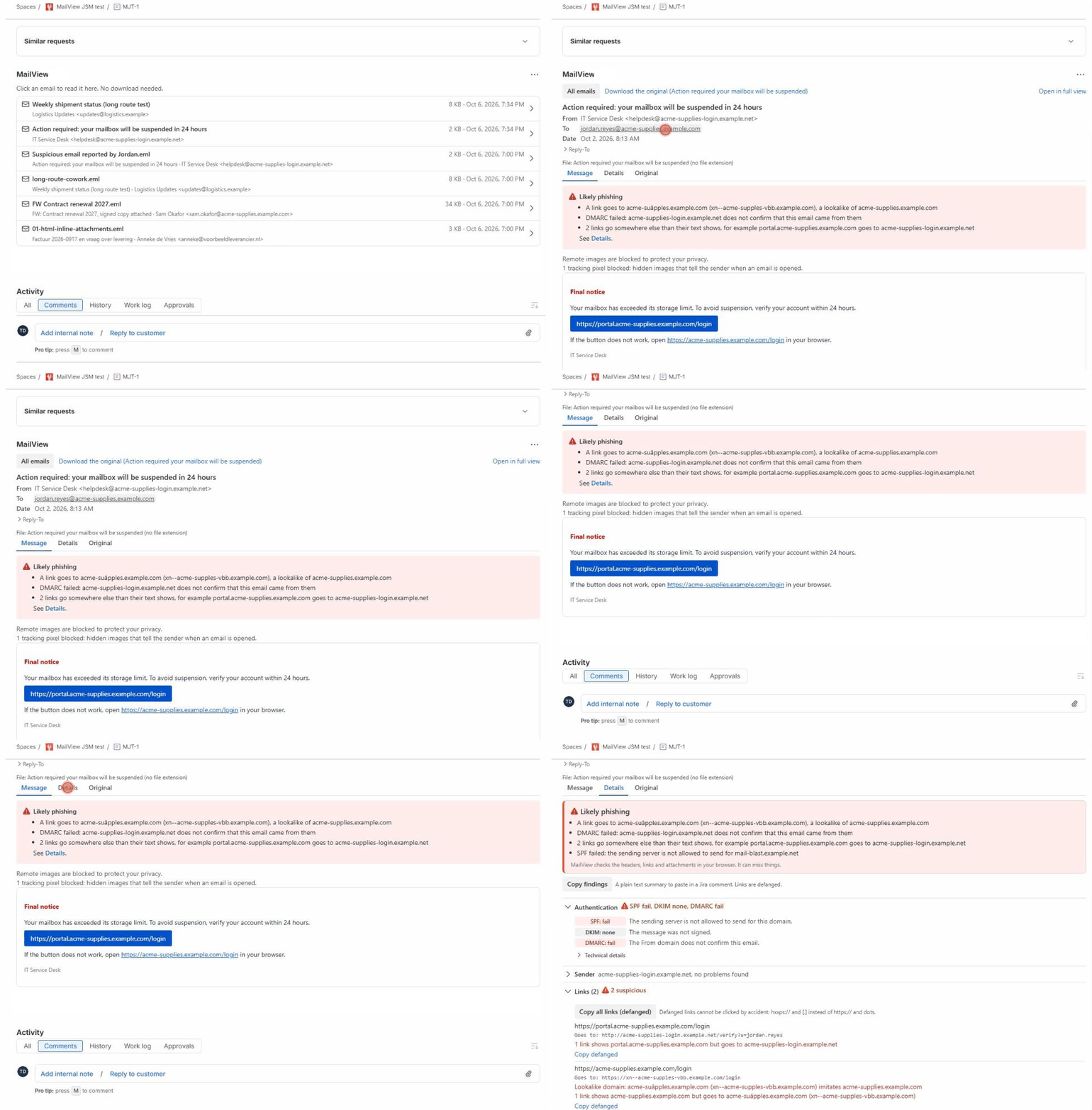
What MailView shows
The email from the file, with nothing added and scripts and forms taken out. No copies, no storage, no external services.
The email as it was sent
Subject, from, to, cc and date, with the body formatted the way the sender wrote it. Long recipient lists are folded.
Outlook .msg and standard .eml
Both formats, including .msg files that only carry RTF. The app looks at the bytes, not the file extension.
Inline images, safe by default
Images that travel inside the email are shown. Images from the internet are blocked, and a single line tells you so.
Files inside the email
Attachments inside the email appear as tiles with name, type and size, ready to download. An email inside an email opens in place.
A details tab for the headers
Every header, the SPF, DKIM and DMARC results recorded by the receiving mail server, and the address behind every link (short links and redirects are not followed). If the link text names one domain and the link goes to another, MailView says so.
Only on work items with email
Only shows up where an attachment could be an email: .eml, .msg, or a file without a known file type, such as a forwarded email without a file name.
Forwarded from Outlook without a file name? MailView recognizes the email by its headers and shows it anyway.
Phishing triage
"Is this legit?" Answered on the work item
An employee forwards a suspicious email to the service desk. Instead of downloading the file and opening it in Outlook, the agent opens it in MailView and gets a verdict, Likely phishing, Be careful, Looks OK or Not enough to judge, with the reasons underneath.
What it checks
SPF, DKIM and DMARC results from the email's headers. Sender and link domains with lookalike letters from other alphabets or with accents (punycode); a typo in plain letters, such as paypa1.com, is not caught. Links whose visible text names one domain while the link goes to another. Risky attachment types.
Copy findings
One button puts a short, defanged summary of the findings in the clipboard, ready to paste into the ticket comment. Links in the summary are written so nobody clicks them by accident.
Safe to open
The email is rendered with scripts, forms and remote images removed, so reading a reported email in MailView does not tell the sender it was opened and cannot run anything.
The verdict helps the person triaging the email; it is not a security control and can miss things. The Details tab shows every header and every link so you can check for yourself.
Want to try the check first? Use the free email check in your browser.
Clear messages instead of errors
A broken file, a protected Outlook message (.rpmsg) or a very large file gets one plain sentence and a link to download the original.
-
Several emails on one work item
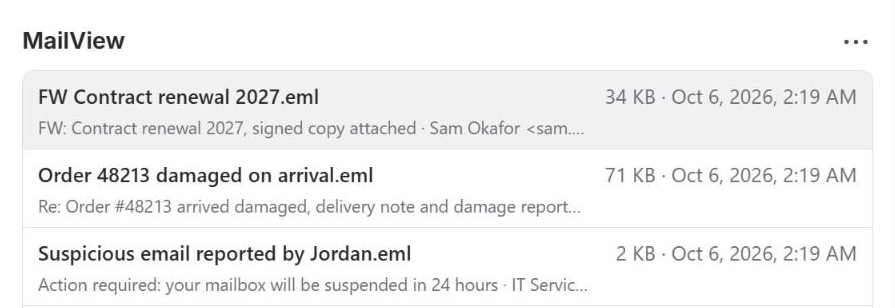
A list with the newest first; subject and sender of the 10 newest are filled in while you look. Click one to read it, use All emails to go back.
-
Download the original
Every email keeps a download link, so you can always open it in your mail app.
-
Keyboard
Tab moves through the list, links and buttons; Enter opens; Escape or Back returns.
Nothing is stored, nothing is sent
MailView is built on Atlassian Forge. It reads the attachment from your Jira with your own permissions and renders it in your browser. Dortus has no servers, keeps no copies and never sees your email. Scripts, forms and remote images in emails are removed before anything is shown.
- Platform
- Atlassian Forge
- Storage
- None
- Permission
- Read work items and attachments
- Billing
- Atlassian Marketplace
Documentation
Everything you need to install and use MailView. There are no settings.
Getting started
- Install MailView from the Atlassian Marketplace. You need to be a Jira admin.
- Open a work item that has a .eml or .msg attachment. Under Apps (the round icon under the work item title) choose MailView. The panel appears above the activity section and shows the email.
- Show it everywhere at once (Jira admins). Open the panel menu (the three dots in the MailView panel) and choose Show for all work items. From then on the panel is there automatically on every work item in that project that has an email attachment. Work items without attachments, or with only common file types such as .pdf, .docx or .png, stay as they are. Note that Hide from all work items also removes the panels people added by hand.
- That's it. There are no settings.
User guide
Open an email. If a work item has one email attachment, the panel shows it right away. If it has several, you see a list with the newest first; click one to open it, and use All emails to go back.
What you see. Subject, from, to, cc and date at the top. Below that, the message on a light "paper", formatted as it was sent. Inline images from the email are shown. If the email tried to load images from the internet, they are blocked and a line says: "Remote images are blocked to protect your privacy." Very long messages are shortened, with a Show entire message button to see the rest.
Files inside the email. Attachments inside the email are listed under the message with their name, type and size. Click one to download it. An email inside an email opens in place; use Back to return.
Details tab. Switch to Details to see every header of the email, the authentication results (SPF, DKIM, DMARC) when they are present, and a list of all links with the address each one points to (short links and redirects are not followed). A warning appears when the visible link text names a different domain than the link actually goes to, or when an international (punycode, xn--) address uses lookalike or accented letters.
Verdict. In the Details tab, and in a bar above the message when something is wrong, MailView says whether the email looks like phishing and lists the reasons: a failed SPF, DKIM or DMARC result recorded in the headers, a sender domain with lookalike letters from other alphabets or with accents, links that go somewhere else than they show, risky attachments. Use Copy findings to put a defanged summary in the clipboard for the ticket comment. The verdict is an aid, not a guarantee; the Details tab has the raw headers and links.
Not enough to judge. The file has no authentication results and either no delivery headers or no sender address (for example a message saved from Outlook before it was sent, or an internal email that never left the mail server), so authentication and sender could not be checked; links and attachments are still checked.
Download the original. Every email has a Download the original link, so you can always open it in your mail app.
Keyboard. Tab moves through the list, links and buttons; Enter opens; Escape or Back returns.
Leave a review. At the bottom of the panel there is a small link to leave a review on the Atlassian Marketplace. MailView does not count or store anything to show it.
Limits
- Supported: .eml files and Outlook .msg files, including messages that only contain RTF in the form Outlook usually saves (other RTF, or RTF over 2 MB, shows the plain-text version if the file has one), and emails nested inside emails (one level).
- Not supported: protected Outlook messages (.rpmsg), which only open in Outlook; files over 10 MB (you get a download link instead); inline images over 5 MB (an empty frame).
- Where it works: Jira work items in company-managed and team-managed projects, and the agent view of Jira Service Management. Not in the JSM customer portal, and not in Confluence.
- What it does not do: MailView never sends email, replies, or creates work items from email. It only shows what is already attached. It does not replace your email security; the verdict is based only on what is in the attached file.
FAQ
I don't see the panel. The panel only exists on work items with an attachment that could be an email: a .eml or .msg file, or a file without a known file type. Open such a work item and choose MailView under Apps, or ask a Jira admin to turn on Show for all work items in the panel menu.
Can everyone see the email? Everyone who can see the attachment in Jira can read it in MailView. The app uses the permissions of the person who is looking, nothing more.
Does MailView store the emails? No. The email is read from the attachment and rendered in your browser each time. Nothing is copied or kept.
Why are images missing? Images that come from the internet are blocked on purpose, because loading them would tell the sender that the email was opened. Images that travel inside the email are shown.
Why is a link in the email not clickable? Links that use javascript: or other unsafe schemes are removed. Normal web links open in a new tab.
How reliable is the phishing verdict? It checks what is in the file: authentication results in the headers, the sender domain, the links and the attachments. It does not look anything up on the internet (nothing leaves your Jira), so it cannot know whether a domain was registered yesterday, whether a link is on a blocklist, or where a short or redirecting link finally leads. Treat Likely phishing as a reason to look closer, and Looks OK as "nothing obvious in the file", not as proof.
Does it work in Jira Service Management? Yes, in the agent view. Not in the customer portal.
Does it work in Confluence? Yes: MailView for Confluence is a separate app, submitted to the Atlassian Marketplace and in review. See MailView for Confluence.
Which languages are supported? The app is in English. The email itself is shown in whatever language it was written in.
Data and privacy
Where is data stored? Nowhere. MailView has no storage. It reads the attachment from your Jira site when you open it and renders it in your browser.
What does the app send outside Atlassian? Nothing. There are no external servers and no outbound connections.
What permissions does the app ask for? Read access to work items and their attachments (read:jira-work). It cannot change anything.
How does it handle unsafe content? Before an email is shown, scripts, forms, embedded frames and external images and stylesheets are removed. Links open in a new browser tab. The email is rendered inside its own isolated area so its styling cannot affect Jira.
Can Dortus see our emails? No. The app runs in your browser and logs nothing about the email content. There is no Dortus server behind it.
What happens if I uninstall? Nothing to clean up: the app stored nothing.
Full policy: Privacy policy. Terms: Terms of service.
Support
Questions, a bug, or an idea? Email support@dortus.com. The person who builds the app reads every message. Please include your site URL, the work item key, whether the file is .eml or .msg and roughly how big it is, what you expected and what happened. Please don't send us the email itself unless it contains nothing private.
See also: How to open .msg and .eml attachments in Jira, How to attach an Outlook email to a Jira work item, Handling phishing reports in Jira Service Management, Outlook .msg vs .eml, Forwarding emails into Jira Service Management, Email request attachments missing in JSM, Jira Service Management not creating requests from email, Email attachments after a Jira migration